Get your department up and running
Short, practical guides for every step, from creating your department to putting a live board on the station TV.
Create your department
Set up your department once and everyone you invite lands in the same shared calendar, roster, and coverage view.
- 1Sign in, then choose Create a department from the home screen.
- 2Enter your department name, timezone, and the stations or units you staff.
- 3Pick your scheduling model: traditional rotation, an open sign-up board, or both.
- 4Confirm your plan. Departments choose a flat monthly plan by crew size (from $60/mo) or a self-serve $3 per active seat, billed through Stripe on the web dashboard.
Tip
You can change your scheduling model later. Most combination departments start with rotation for career crews and add a sign-up board for volunteers.
Invite your team
Bring your crew in by email or a shareable link. Members join free and inherit every Premium feature while your department subscription is active.
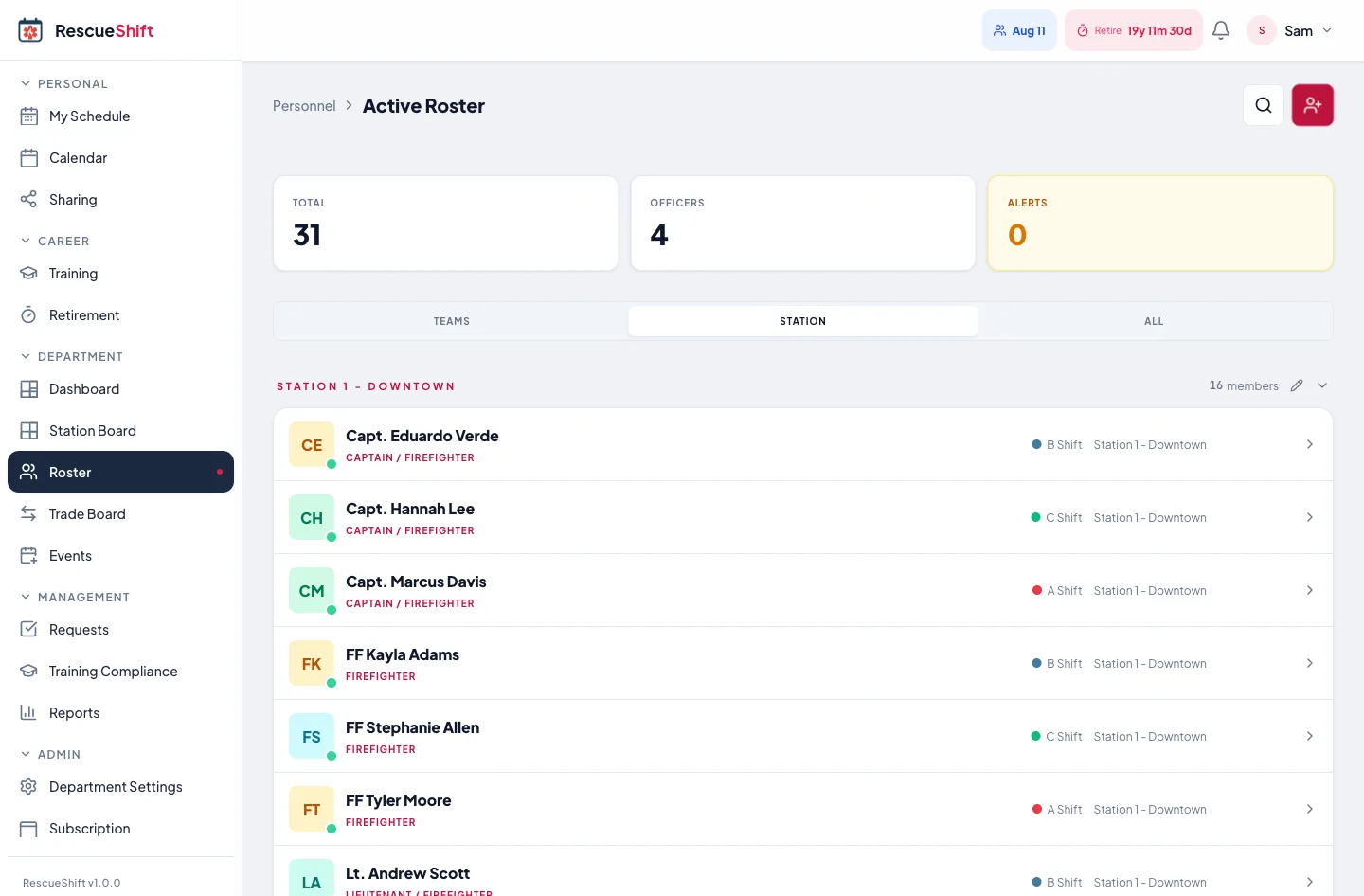
- 1Open Members, then choose Invite.
- 2Add email addresses, or copy the join link to post in your group chat.
- 3Assign each person an access role and their duty role as they accept.
- 4Track who has joined from the Members list. Pending invites can be resent or revoked at any time.
Tip
Send the join link in your existing department chat. Members can accept on their phone and see the schedule before they finish setting up a password.
Set roles and permissions
RescueShift separates access roles, which control what someone can change, from duty roles, which describe what they do on a call.
- 1Assign an access role: Admin, Battalion Chief, Captain, Firefighter or EMT, or Read-Only.
- 2Assign a duty role such as Firefighter, EMT, or Paramedic so staffing counts stay accurate.
- 3Scope leadership roles to a battalion or station so chiefs and captains only manage their own crews.
- 4Give dispatchers or city staff a Read-Only role so they can view the schedule without editing it.
Tip
A captain and a paramedic can be the same person. Access roles and duty roles are set independently so you can model your real chain of command.
Build a rotation schedule
Model A handles traditional platoon rotations. Set the pattern and anchor date once, and RescueShift calculates who works every day going forward.
- 1Open Scheduling, then Shift patterns, and choose New pattern.
- 2Pick a cycle such as 24/48, 48/96, 24/72, 3x12, or a fully custom rotation.
- 3Set the anchor date and assign your platoons or shift teams (A, B, C).
- 4Add Kelly days if your department uses them to reduce average weekly hours.
Tip
The anchor date is any day you know a specific team was on duty. RescueShift uses it to project the rotation both forward and backward with no manual entry.
Open a sign-up board
Model B lets members claim open shifts from their phone. Generate slots from a template and let the board fill itself.
- 1Open Scheduling, then Sign-up board, and create slot templates for your recurring open shifts.
- 2Generate slots for the weeks or month ahead with one tap.
- 3Set monthly minimums so the system tracks who still owes hours.
- 4Members open the board, claim shifts, and the roster updates for everyone in real time.
Tip
Use the sign-up board for volunteer coverage, overtime, and callback. Monthly minimums are tracked automatically so you can see who is short at a glance.
Manage the daily roster
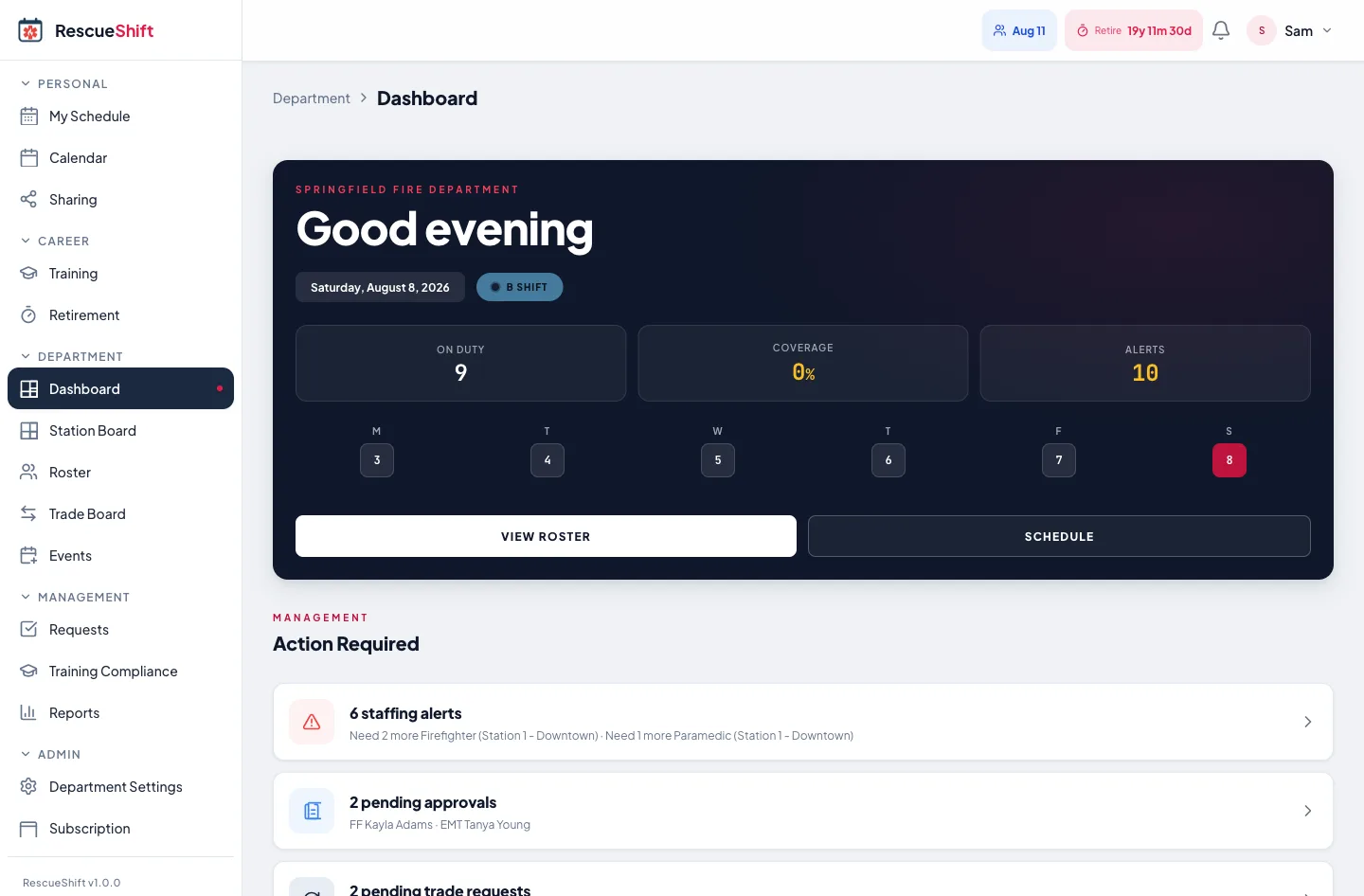
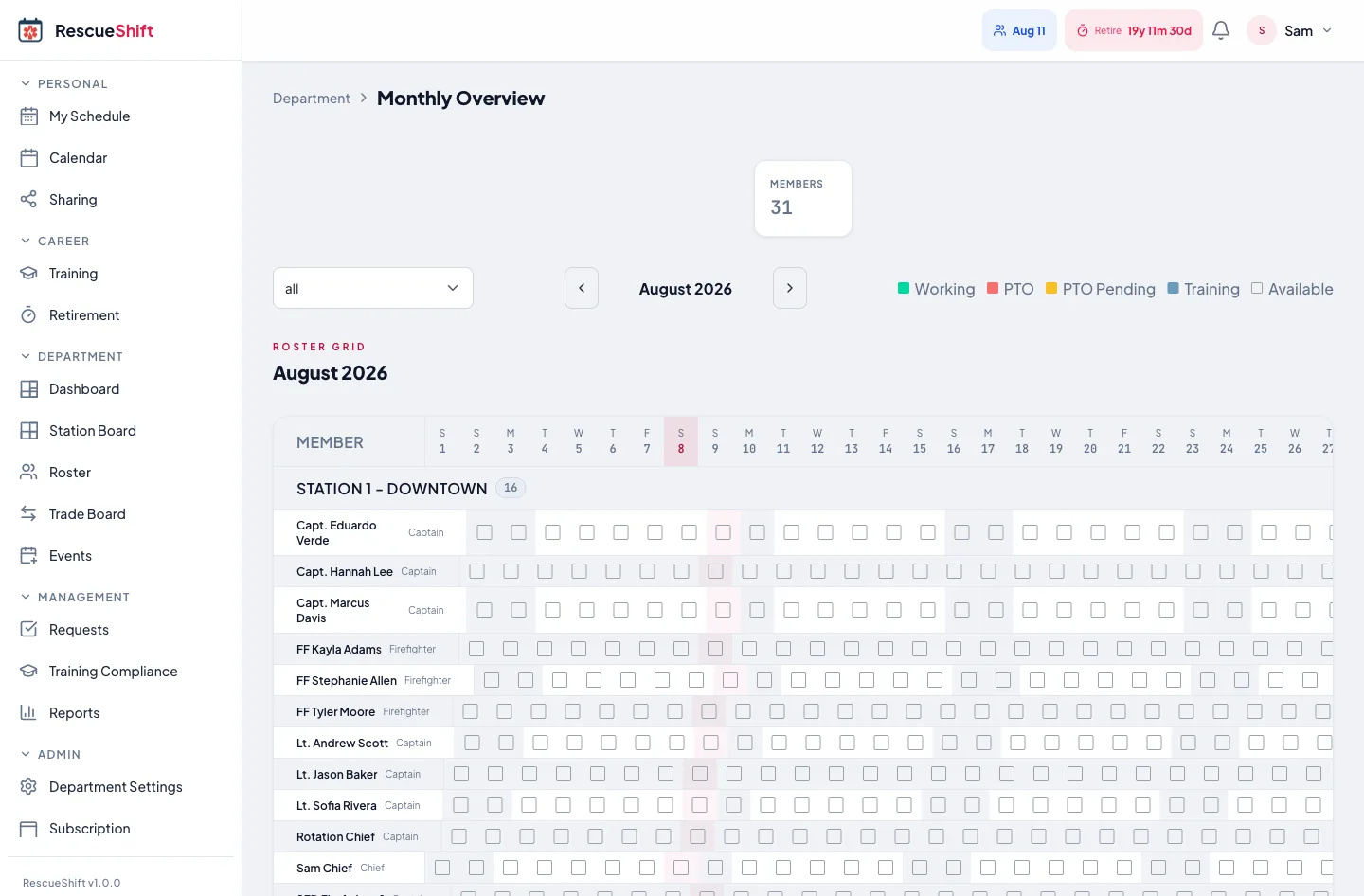
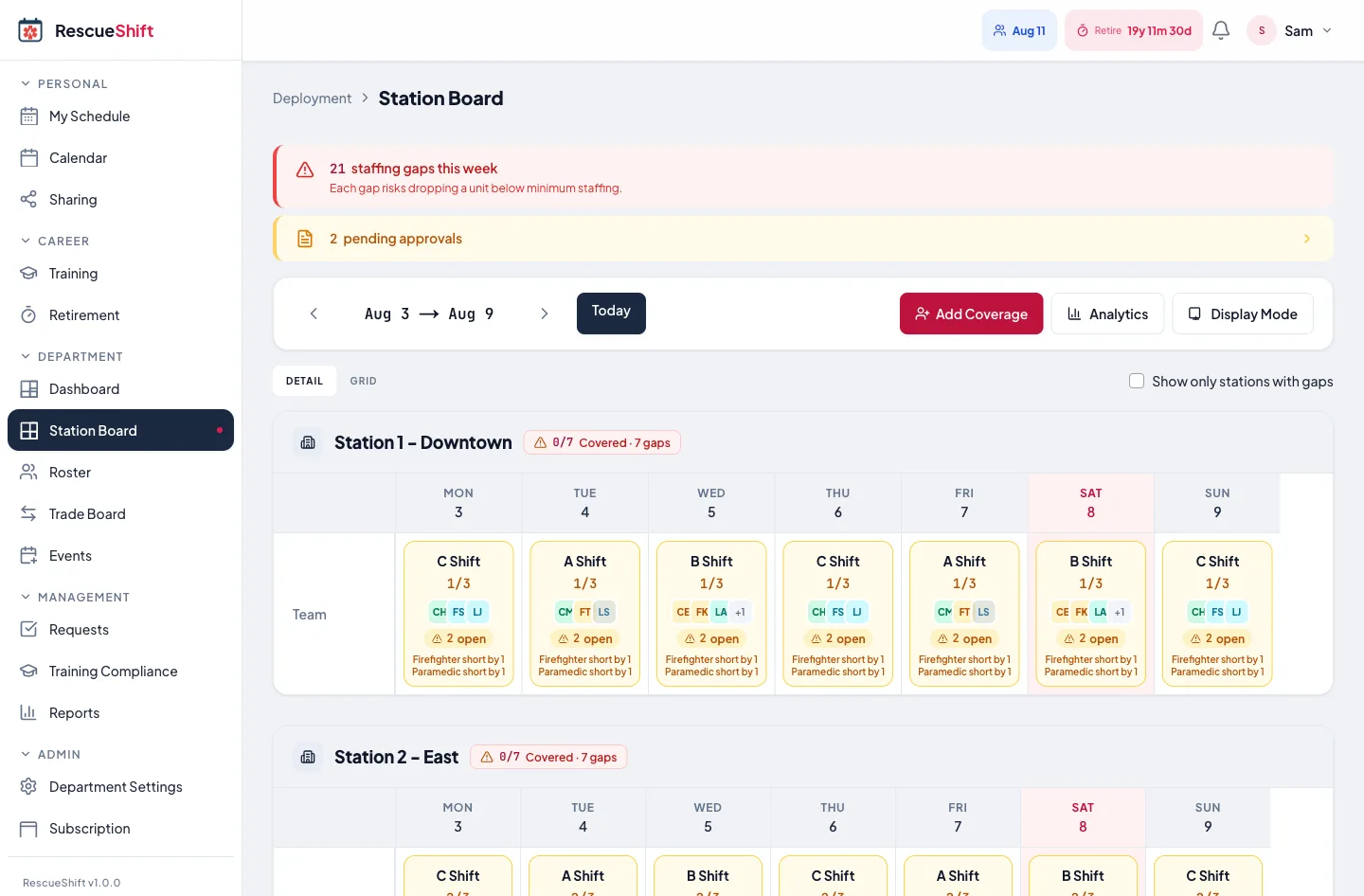
The roster merges rotation and sign-up coverage into one view so you always know who is on duty and where the gaps are.
- 1Open Roster and pick any date to see who is scheduled by station and unit.
- 2Assign members to apparatus and confirm each unit meets its minimum staffing.
- 3Watch for coverage warnings when a unit drops below its required crew.
- 4Move or backfill assignments as trades and sign-ups come in.
Tip
Minimum staffing warnings flag a unit before it goes out of service, so you can call for coverage instead of finding out at shift change.
Handle trades and time off
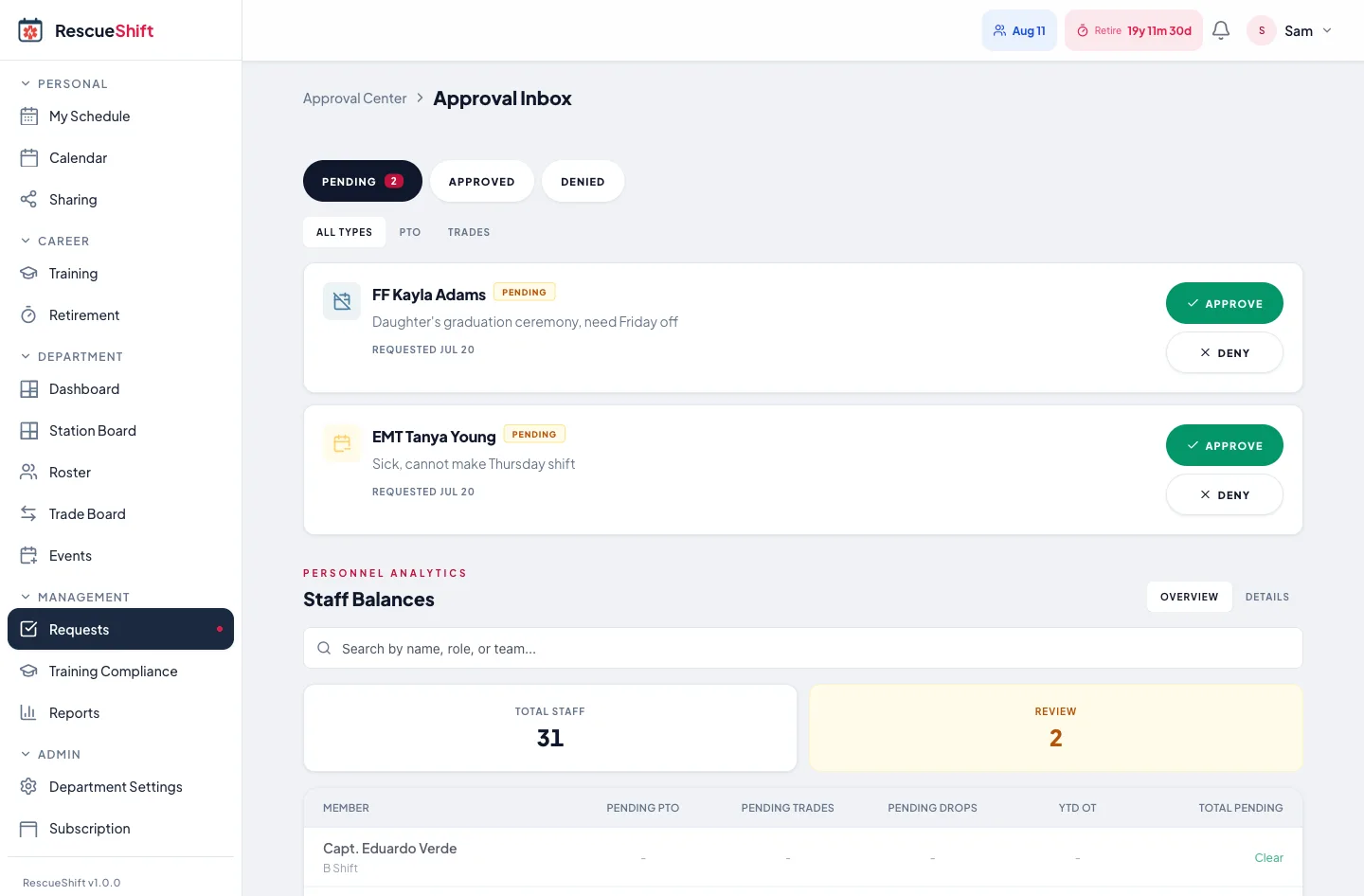
Trades and PTO requests route to the right approver and run a staffing impact check before anything is confirmed.
- 1A member requests a trade with a partner or submits a time-off request.
- 2The partner confirms the swap, then it moves to an approver.
- 3RescueShift checks the staffing impact so an approval never drops a unit below minimum.
- 4The approver confirms or declines, and everyone involved is notified.
Tip
Trades require the partner to agree and an admin to approve, with a live staffing check in between, so no swap quietly leaves a unit short.
Put a board on the station TV
The station display turns any TV or monitor into a read-only whiteboard that shows today's crew, units, and coverage.
- 1Open the web dashboard and go to Display.
- 2Choose the station and the units you want on screen.
- 3Open the display link in a browser on the station TV or a dedicated device.
- 4Leave it running. The board refreshes automatically as the schedule changes.
Tip
The display is read-only by design. It replaces the dry-erase whiteboard without giving anyone a way to change the schedule from the day room.
Use the personal calendar
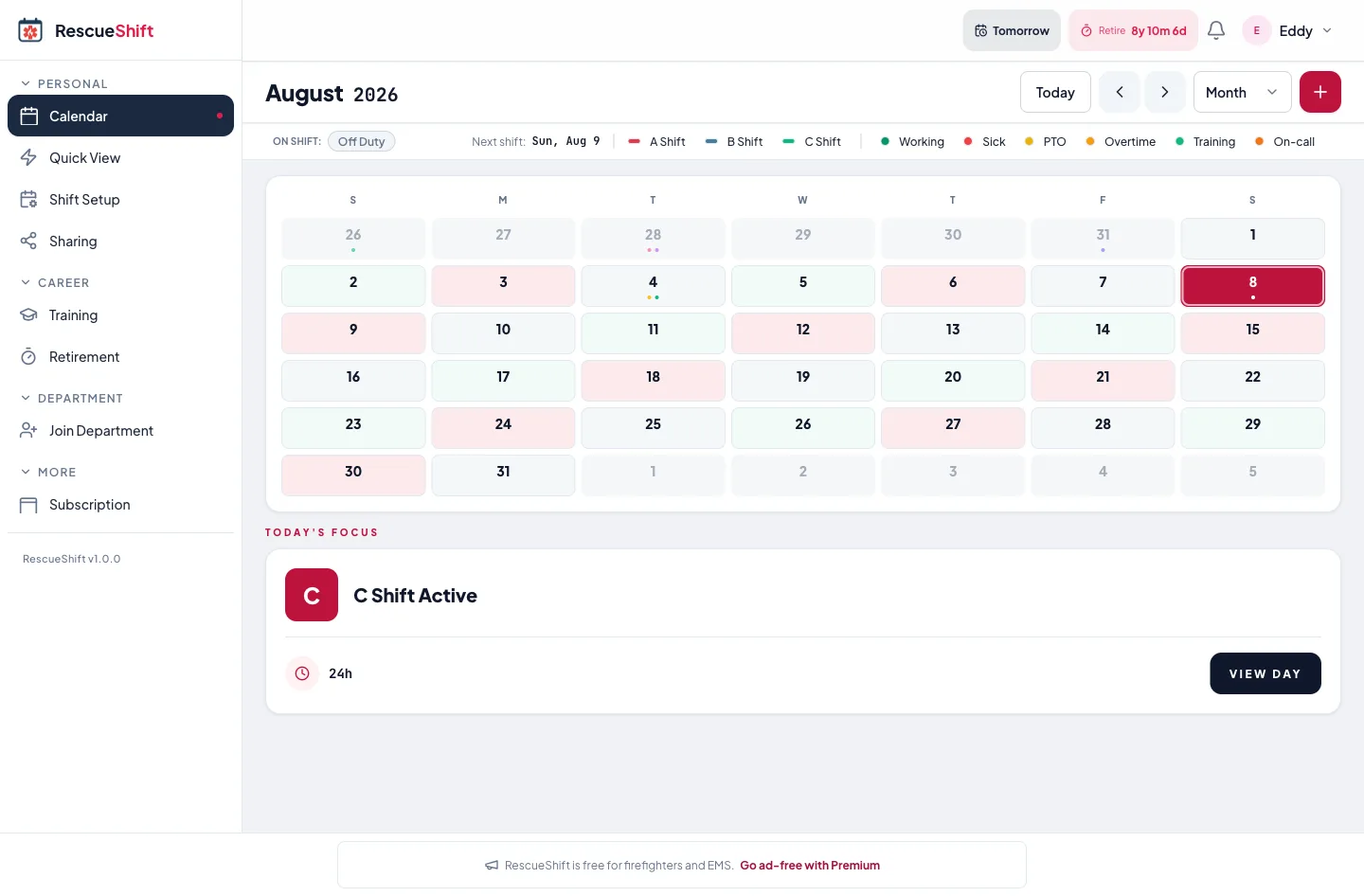
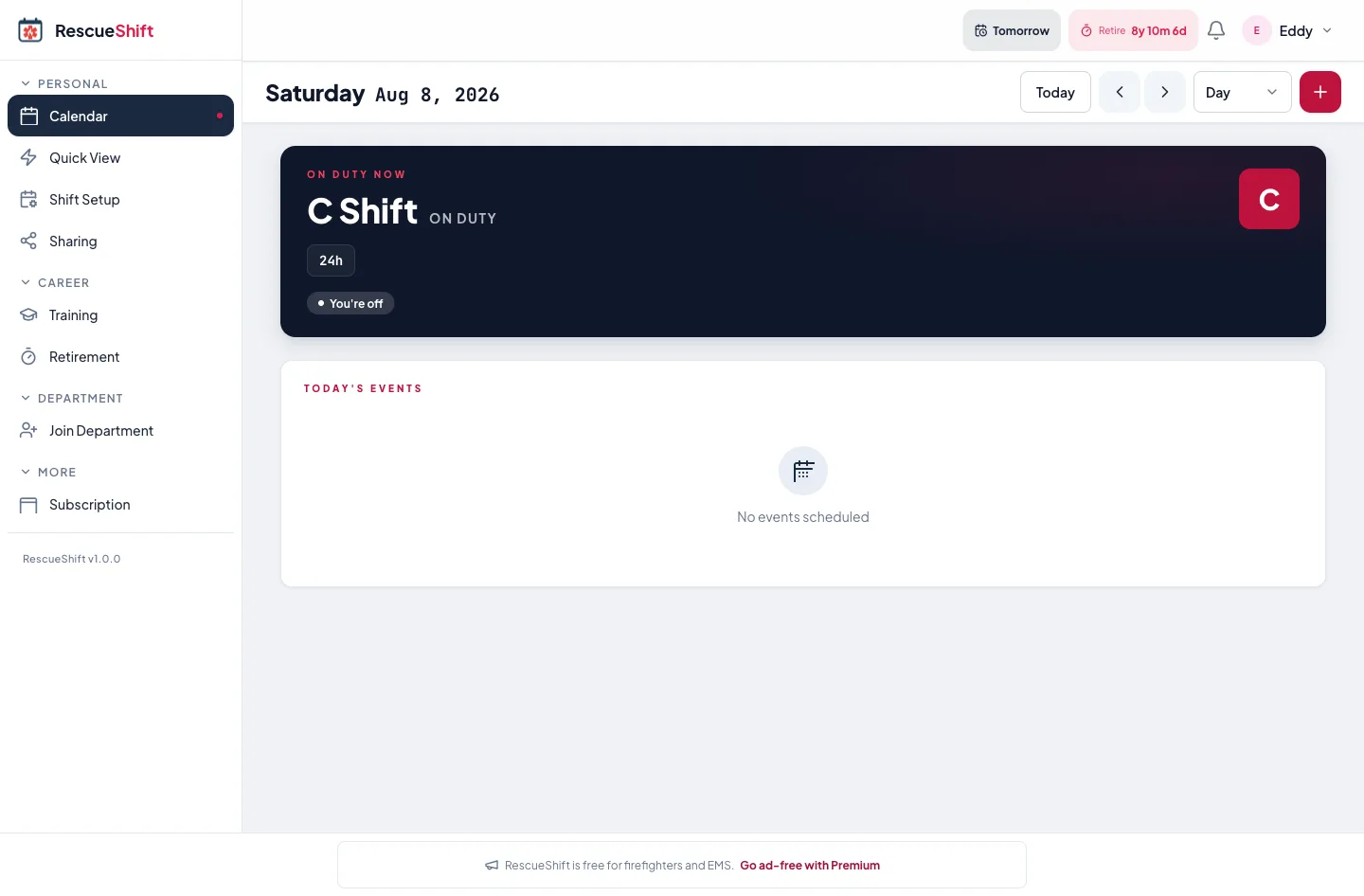
Every member gets a personal shift calendar, whether or not they belong to a department, with optional sharing.
- 1Set your rotation or add shifts manually with recurrence for off-department work.
- 2See your upcoming shifts, trades, and time off in one calendar.
- 3Upgrade to Premium to remove ads and share your calendar with up to 10 family members.
- 4Family members follow your schedule so everyone at home knows when you are on duty.
Tip
Sharing is a Premium feature at $2.99 per month. Department members get Premium included while the department subscription is active.
Still have questions?
The FAQ answers billing, device support, FLSA overtime, and how career, volunteer, and combination departments use RescueShift.
Put your whole schedule on one board
Start free as a first responder, or set up your department and see coverage across every station in an afternoon.
See my schedule free